
IoT 및 Raspberry Pi 4 setting 준비물#
SD 카드와 리더기
Raspberry Pi 4 - 4GB 메모리
Raspberry Pi 4 전원 케이블(5V 3A, C-type)
모니터 연결 용 마이크로 HDMI 케이블
Raspberry Pi Imager
설치 방법#
아래 링크 접속.
 Teach, learn, and make with the Raspberry Pi FoundationWe are a charity with the mission to enable young people to realise their full potential through the power of computing and digital technologies.www.raspberrypi.org
초기 화면 → Computers → Software 선택.
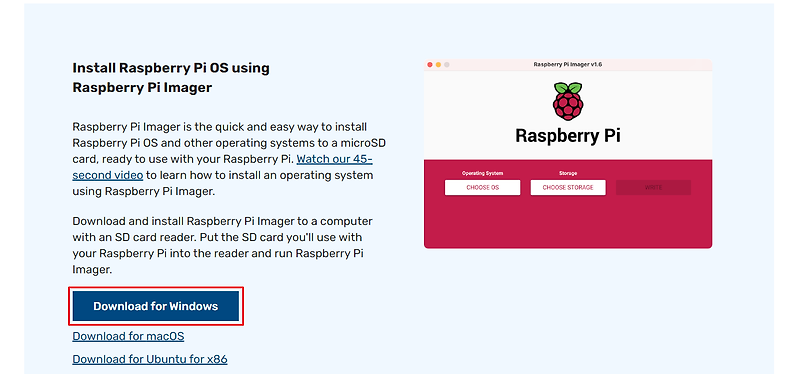
Raspberry Pi Imager (Download for Windows) 다운.
다운로드 후, 해당 프로그램 실행.
장치 선택 - Raspberry Pi 4/운영체제 선택 - Raspberry Pi OS(64-bit)/저장소 선택 - SD 카드 선택.
Write 실행 전, 설정을 선택하여 기본 값 설정.
SSH 사용 선택.
사용자 이름: ppojjacki(본인 이름 설정), 비밀번호 설정.
WIFI 설정 선택(PC의 WIFI가 그대로 이전되어 화면에 보임).
Wireless Lan Country ‘GB’ 선택.
로컬 선택: 타임 존은 ‘Asia Seoul’ 선택, 키보드는 ‘US’ 선택.
설정 후, Write를 실행하면 OS가 SD카드에 설치 완료.
OS가 설치된 SD 메모리 카드를 Raspberry Pi의 SD카드에 끼운 후, 부팅.
Trouble Shooting#
Problem : 부팅 후, 본인은 internet 문제로 ssh 연결 오류가 발생.
Troubleshooting : Cert팀 WIFI를 이용하여 ssh 연결이 정상적으로 실행이 됨을 확인.
참고 자료#
 최신 라즈베리파이(Raspberry 4) OS 에러없이 설치하기라즈베리파이(Raspberry)는 저렴한 가격과 소형의 크기로 누구나 쉽게 접근할 수 있어서 학교뿐만 아니라 산업계의 다양한 분야에서 사용되고 있습니다. 라즈베리파이 4에 최신 라즈베리 OS를 설치humber.tistory.com
 Teach, learn, and make with the Raspberry Pi FoundationWe are a charity with the mission to enable young people to realise their full potential through the power of computing and digital technologies.www.raspberrypi.org
 라즈베리파이 SSH 연결개발환경 모니터, 키보드 없이 라즈베리파이 세팅하기 우선 원격 접속(SSH)를 해야 하므로 기본으로 연결할 와이파이를 지정해야 한다. 설정 파일 직접 작성 모니터 없이~ 로 검색하면 굉장히 많velog.io
 [Raspberry Pi] 모니터 없이 Ubuntu 22.04 LTS 설치하기 (Raspberry Pi Imager)Raspberry Pi에 별도의 모니터 없이 Ubuntu 를 설치한다. 준비물 1. Raspberry Pi 4B 4GB 2. Micro SD 카드 + 카드 리더기 3. Pi Imager 4. 컴퓨터 5. wifi + wifi 공유기 Ubuntu 이미지 다운로드 (Pi Imager 사용) 1. Raspberry Pi Imain.tistory.com